Salesforce Case Export: Keep Every Case, Comment and File When You Leave
Salesforce case export plan for leaving Service Cloud: what a case is made of, what each export route keeps, and what to decide before picking a help desk.
 Ayush BothraFounding Member, MigrateX
Published 6 min read
On this page
- What does a Salesforce case export have to include?
- Which Salesforce export route keeps a case together?
- What should you decide before choosing a destination help desk?
- Where do Salesforce cases go next?
- Salesforce case export checklist
- Salesforce case export FAQ
- Move 100 Salesforce Cases before you commit
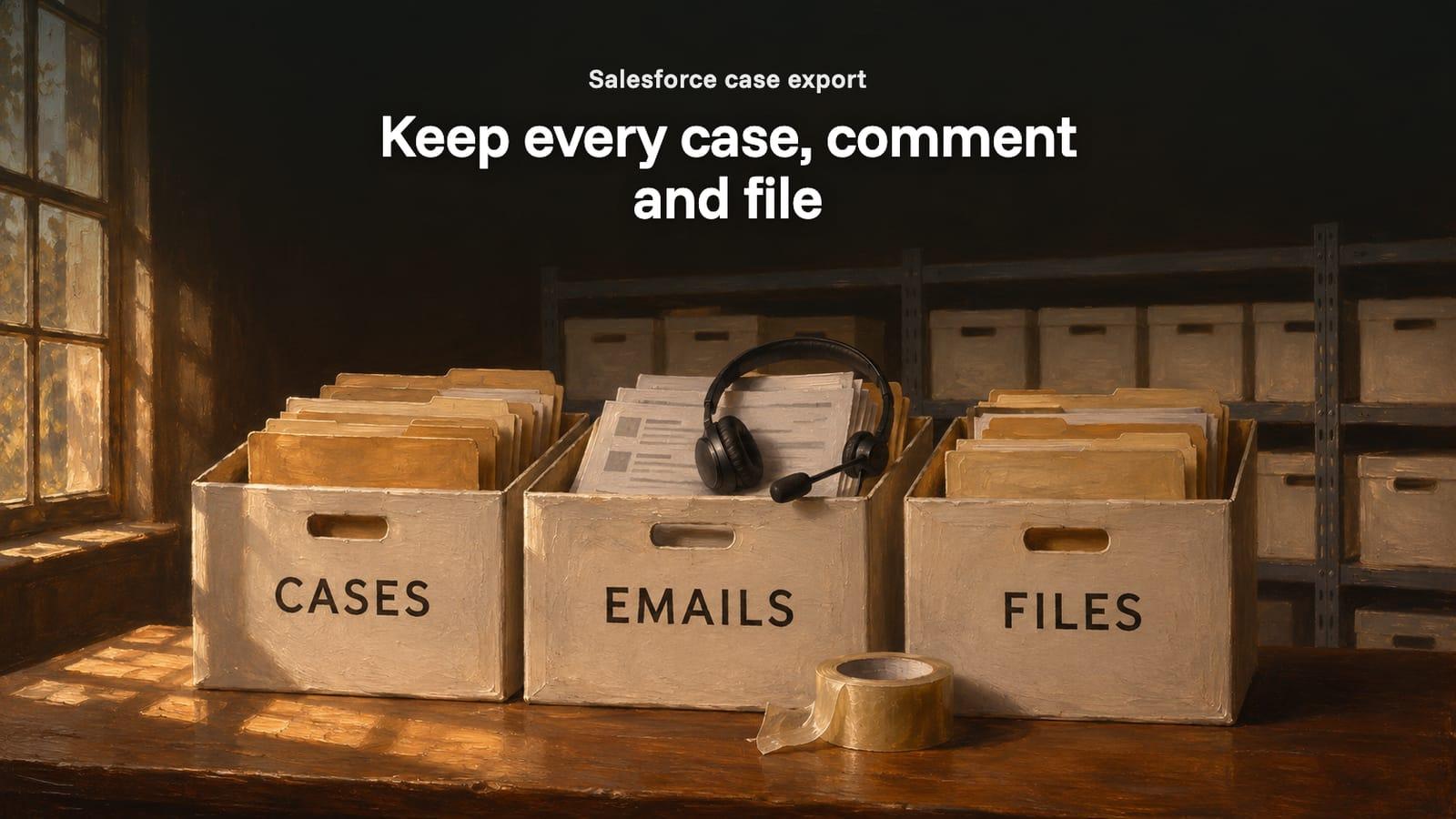
A Salesforce case export that keeps everything covers six sets of records: the Case, its EmailMessage records, case comments, Chatter feed items, the Files linked to it, and your Knowledge articles. Read them through the Salesforce API, Case by Case, because the built-in Data Export Service is a backup. Decide five things before you pick the destination.
This is the planning guide for support leaders leaving Salesforce Service Cloud, whichever help desk comes next. If the destination is already Zendesk, go straight to moving Service Cloud Cases, emails and files to Zendesk.
What does a Salesforce case export have to include?
Six objects, because Service Cloud stores one support request as a Case and spreads its history across the others, per Salesforce's Object Reference. Each one raises its own question for the move.
The parts of a case and the decision each needs:
| Part of the case | Salesforce object | The question it raises |
|---|---|---|
| The request | Case | Which Cases move: all, or open ones plus a date range? Keep the Case Number for search |
| Customer emails | EmailMessage | Only exists when the org uses Email-to-Case or Enhanced Email. Are all replies on the Case? |
| Case comments | CaseComment | Up to 4,000 bytes each, published or not. Which become public replies, which internal notes? |
| Chatter posts | FeedItem | Visibility is AllUsers or InternalUsers. Should any post be visible to customers? |
| Files | ContentDocument, ContentVersion | Linked to the Case, an email or a post through ContentDocumentLink. Latest version only, or every version? |
| Knowledge | KnowledgeArticleVersion | Draft, published and archived versions per language. Which versions and languages move? |
Entitlements and milestones do not export as something to load: the SlaProcess object supports query and describe, not create. The new help desk's SLA rules are set up again, and old met-or-missed results can travel as fields. Our Salesforce Service Cloud platform page lists the limits that apply in both directions.
Which Salesforce export route keeps a case together?
Only the API. The other two routes work one object at a time. Our guide to the 6 ways to export Salesforce data compares them in full; for leaving Service Cloud, this is what matters.
What each route does with a case:
| Route | Keeps the case together? | The catch |
|---|---|---|
| Data Export Service | No: one CSV per object | A backup; Chatter posts and comments are cut at 1,000 characters |
| Data Loader | No: one object per export, rejoined by ID | You rebuild every thread yourself |
| Salesforce API (Bulk API 2.0 plus REST) | Yes, when each Case's emails, comments, posts and file links are read together | Shares your org's daily API allocation with every integration already running |
What should you decide before choosing a destination help desk?
Five things. They change the scope of a Service Cloud exit more than the choice of help desk does. Make them first, and the destination comparison becomes a check of which platform can hold what you decided to keep.
1. How much history moves. Moving every Case keeps reporting simple. Open Cases plus two or three years of closed ones cuts volume, and the rest stays in a backup. Agree the cut-off date with whoever answers audit or legal requests.
2. How the destination holds one conversation. Help desks differ, according to their own API documentation. Zendesk keeps one comment list per ticket, up to 5,000 comments. HubSpot logs emails and notes as activities on the ticket, with a note body of up to 65,536 characters. Freshdesk needs a unique email for every contact. An Intercom ticket takes only one contact.
3. Who sees which entry. Unpublished case comments and internal feed posts must arrive as internal notes. Decide what happens to feed posts visible to all users, then test the sample logged in as a customer.
4. Whether the CRM stays in Salesforce. If sales stays, the help desk needs copies of the Accounts and Contacts its tickets point to, each holding its Salesforce ID so a later integration can match them. The checks before connecting a CRM and a help desk apply here.
5. What happens to Knowledge. Pick the versions (latest published, drafts, archived) and the languages, and map data categories to the destination's categories and sections.
Where do Salesforce cases go next?
Four common destinations:
- Zendesk: one ticket thread per Case, with dates set on import. See the Salesforce Service Cloud to Zendesk migration page.
- HubSpot: tickets on the same CRM as sales, with emails and notes as activities. See the HubSpot platform page.
- Freshdesk: contacts matched on a unique email. See the Freshdesk platform page.
- Intercom: tickets tied to one contact, with conversations alongside. See the Intercom platform page.
Salesforce case export checklist
Run this with your Salesforce admin before the first export.
- Count Cases by status and year, and emails, case comments, feed posts and files per Case.
- Confirm Email-to-Case or Enhanced Email is on, so customer replies exist as EmailMessage records.
- Set the history cut-off: every Case, or open Cases plus a date range.
- List record types and queues; each needs a home in the new help desk.
- Decide how unpublished comments and each feed post visibility setting map.
- Find the largest files and agree a rule for any the destination refuses.
- Choose the Knowledge versions and languages that move.
- Decide where Case History and milestone results go: note, field or archive.
- Create a read-only integration user with API access to every object in scope.
- Run a Data Export with files included as a safety copy.
Facts checked November 15, 2026 from Salesforce Object Reference: Case, Salesforce Object Reference: EmailMessage, Salesforce Object Reference: CaseComment, Salesforce Object Reference: FeedItem, Salesforce Object Reference: ContentDocumentLink, Salesforce Knowledge Developer Guide: SOQL and SOSL, Salesforce Object Reference: history objects, Salesforce Object Reference: SlaProcess, Salesforce Help: Export Backup Data from Salesforce, Salesforce Help: Choosing a Method for Importing Data, Zendesk developer docs: Ticket Comments, HubSpot developer docs: Notes, Freshdesk API docs and Intercom developer docs: Create a ticket. No vendor paid for this article. How we research
Salesforce case export FAQ
How do I export Salesforce cases with their comments and emails?
Read each Case with its CaseComment, EmailMessage and FeedItem records through the Salesforce API, plus the files linked to the Case, its emails and its posts. Exports that work one object at a time give you separate files to rejoin by Case ID, which is where comments and attachments usually go missing.
Can Case History move to another help desk?
Not as history. Salesforce history objects can be read but not created, and the destination usually has no equivalent for a field-by-field change log from another system. The choice is one internal note per ticket listing the changes, or leaving the history in your backup for audit requests.
What if our team answered customers by email outside Salesforce?
Then those replies may not be on the Case at all. EmailMessage records exist only when the org uses Email-to-Case or Enhanced Email. Check a few recent Cases before you scope: if the customer's emails are missing in Salesforce, no export route can produce them.
Is the Data Export enough as an archive of old Cases?
As a safety copy, yes. It holds every object's records as CSV files, with files if the options are ticked. As something to read, no: each thread is spread over several CSV files, and Chatter posts and comments are cut at 1,000 characters. Download the zip files promptly, because Salesforce deletes them 48 hours after its email.
What access do you need to export our Salesforce cases?
A dedicated integration user with API access and read permission on Cases, emails, comments, feeds, files and Knowledge. We never ask for a System Administrator login, and nothing in your org changes. A Data Export, if you want one as a backup, is run by your own admin.
Move 100 Salesforce Cases before you commit
MigrateX is an AI migration platform with migration experts checking each mapping. It is SOC 2 Type II, GDPR and HIPAA compliant, and our access to your org is read-only. Send us your Case counts by year and the help desk you are considering. You get 100 of your own Cases there, with emails, comments, posts and files, free, and a fixed quote within 24 hours. Start with a free sample.

Written by
Ayush BothraFounding Member, MigrateX
Ayush writes about ITSM platforms, pricing and what it takes to move a service desk to a new platform without losing its history.