Connect a CRM and Help Desk Without Duplicates: 7 Checks First
Connecting a CRM and a help desk? Run 7 checks first, starting with duplicate contacts, using real HubSpot, Salesforce, Zendesk and Freshdesk rules.
 Ayush BothraFounding Member, MigrateX
Published 7 min read
On this page
- Which 7 checks stop CRM and help desk duplicates?
- 1. De-duplicate contacts on the key each platform matches
- 2. Decide what happens to contacts without a unique email
- 3. Match companies to organizations
- 4. Store each system's record ID on the other
- 5. Map owners, agents and inactive users
- 6. Align lead, lifecycle and status fields
- 7. Name one record of truth per field
- When is this a cleanup job and when is it a migration?
- CRM and help desk duplicates FAQ
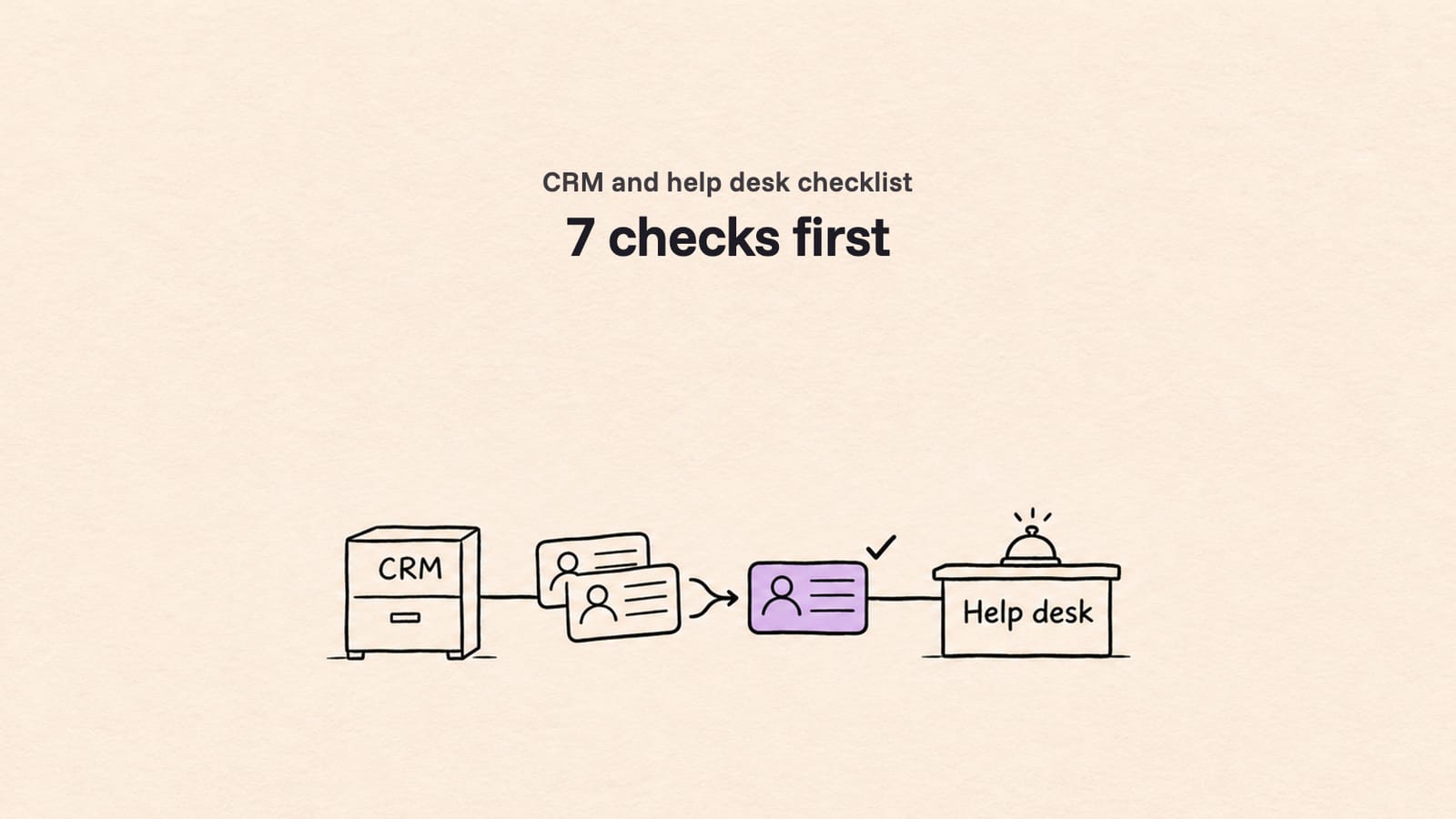
Before you connect a CRM such as HubSpot or Salesforce to a help desk such as Zendesk or Freshdesk, de-duplicate contacts on the key each side matches on. Then run six more checks: contacts without a unique email, companies against organizations, record IDs for matching, owners and inactive users, lead and status fields, and which system owns each field.
This checklist is for operations and support leads about to sync, merge or migrate between a CRM and a help desk. If you are still deciding whether you need both, read our comparison of CRM vs help desk software first. Every platform rule below is from the vendor's own documentation, as of November 2026.
Which 7 checks stop CRM and help desk duplicates?
Contacts first, then the six things that hang off a contact. Each check names what goes wrong without it and the platforms whose documented rules make it bite.
The seven checks at a glance:
| # | Check | What goes wrong without it | Where it bites |
|---|---|---|---|
| 1 | De-duplicate contacts | Each copy syncs across and doubles | HubSpot, Salesforce, Dynamics 365, Zoho CRM |
| 2 | Contacts without a unique email | Records split, or merge by accident | Freshdesk, Intercom, HubSpot |
| 3 | Companies vs organizations | Load errors, or contacts on the wrong company | Zendesk, HubSpot, Salesforce |
| 4 | Record IDs for matching | Every re-run inserts again | Zendesk, Salesforce, HubSpot, Intercom |
| 5 | Owners and inactive users | Tickets and records land unassigned | HubSpot, Salesforce, Zendesk |
| 6 | Lead and status fields | Prospects appear as customers, or the reverse | Salesforce, Intercom, HubSpot |
| 7 | One record of truth per field | Two systems overwrite each other | Any two-way sync |
1. De-duplicate contacts on the key each platform matches
The check. Find duplicates in each system before connecting them, using the field the other side will match on, and merge them where they live.
Why it matters. Each platform decides "same person" differently, per its own documentation:
- HubSpot updates instead of duplicating when an import carries a unique identifier: Record ID, a unique-value custom property, Email for contacts or Company domain name for companies. In a multi-object import, rows with identical data and no identifier are treated as one record.
- Salesforce allows up to five active duplicate rules per object, each with up to three matching rules. Duplicate rules do not run in some cases, such as records created through Quick Create.
- Microsoft Dataverse (behind Dynamics 365 Sales) suppresses duplicate detection by default on records created through its Web API, and ships default rules for accounts and contacts only.
- Zoho CRM skips duplicate records on a Bulk Write insert only when
find_bynames a unique field.
How to run it. Export contacts from both systems, normalise emails (case, spaces), and count matches, near-matches and contacts with no email. Merge in the source system, not after the sync.
2. Decide what happens to contacts without a unique email
The check. List contacts with no email, a shared email (such as a team inbox) or more than one email, and agree a rule for each.
Why it matters. Each side treats email differently:
- Freshdesk requires a unique email per contact, and creating a ticket with an email it does not know creates a new contact on the spot.
- HubSpot matches contacts on email, so contacts without one need a Record ID or a unique property to avoid duplicates.
- Intercom's contact import matches on the Intercom ID, then user_id, then email, and Intercom warns that mixing email and user_id can create duplicates.
How to run it. Pick one identity key per system and stick to it. Shared inboxes usually become one contact per real person, or one organization-level contact, agreed with the team that owns them.
3. Match companies to organizations
The check. Compare how the CRM groups people (accounts, companies) with how the help desk does (organizations), and fix names and links before syncing.
Why it matters. Zendesk requires a unique name for each organization, while Salesforce Account names need not be unique, so two "Acme Ltd" accounts cannot load as two organizations under one name. HubSpot allows several associated companies per record but only one primary company. In Salesforce, AccountContactRelation links one contact to more than one account.
How to run it. List duplicate company names and contacts with more than one company. Agree a naming rule (for example, adding the country) and which company counts as primary.
4. Store each system's record ID on the other
The check. Give every synced record a field that holds the other system's ID, and match on it, not on names.
Why it matters. Zendesk documents external_id on a ticket as "an id you can use to link Zendesk Support tickets to local records"; which Zendesk field holds a CRM ID on users and organizations is confirmed on a sample. Salesforce allows 25 External ID fields per object by default, used to upsert on a source system's ID. HubSpot batch endpoints can match records on a custom unique property through idProperty. Intercom contacts carry an external_id too.
How to run it. Create the ID fields before the first sync and backfill them for records that already exist on both sides. With IDs in place, a re-run updates records instead of inserting them again.
5. Map owners, agents and inactive users
The check. Match CRM owners to help desk agents, and decide what happens to records owned by people who have left.
Why it matters. HubSpot creates owners from users, and its Owners API is read-only, so users must be created before records can be assigned to them; owners assigned through an import get no notification. Salesforce needs the "Update Records with Inactive Owners" permission to load records owned by inactive users. In Zendesk, a ticket assigned to an agent must also have a group.
How to run it. Build an owner table: CRM user, help desk agent, status, default group. Send records owned by departed staff to a named queue or group.
6. Align lead, lifecycle and status fields
The check. Decide how prospects and customers are told apart on each side, and which statuses mean open or closed.
Why it matters. A converted Salesforce Lead is read-only, with ConvertedContactId pointing to the Contact it became, so syncing both creates two people. Intercom contacts are either users (signed up) or leads (not). In HubSpot, every ticket status is marked OPEN or CLOSED through ticketState.
How to run it. Sync converted leads as their contacts only, map each status to open or closed, and decide whether the help desk needs lifecycle stage at all.
7. Name one record of truth per field
The check. For every synced field, write down which system owns it, and turn off any second process writing the same records.
Why it matters. Two writers make duplicates. HubSpot warns that using Smart Transfer and its Salesforce integration at the same time creates duplicate records in HubSpot and Salesforce. HubSpot imports cannot update existing emails, notes and tasks, so re-running an activity import adds a second copy. Intercom sends live messages straight away to imported contacts who match their audience.
How to run it. A one-page field ownership table: field, owner system, direction, conflict rule. Pause live messages and old integrations during any bulk load.
When is this a cleanup job and when is it a migration?
It is a cleanup when both systems stay: your admins can run these checks, with a sync platform doing the rest. It is a migration when one system replaces the other, such as moving support from Zendesk to HubSpot or from Freshdesk to HubSpot. Then the same checks decide whether tickets point at the right person after the move. Two worked examples are our Zendesk to HubSpot guide and our HubSpot to Zendesk guide.
MigrateX, an AI migration platform for help desk, ITSM and CRM data, is SOC 2 Type II, GDPR and HIPAA compliant. Platform rules for each side are on our HubSpot, Salesforce and Zendesk platform pages.
Facts checked November 15, 2026 from HubSpot Knowledge Base: Format import files, HubSpot Knowledge Base: Import records for multiple objects, HubSpot Knowledge Base: Transfer data with HubSpot Smart Transfer, HubSpot developer docs: Owners, Salesforce Help: Things to Know About Duplicate Rules, Salesforce Help: External ID fields, Salesforce Object Reference: Lead, Zendesk developer docs: Users, Zendesk developer docs: Organizations, Zendesk developer docs: Groups, Freshdesk API docs, Intercom help: Import your user data into Intercom, Microsoft Dataverse: Create a table row using the Web API and Zoho CRM API: Create Bulk Write Job. No vendor paid for this article. How we research
CRM and help desk duplicates FAQ
Why does connecting a CRM and help desk create duplicate contacts?
Usually because the two systems match people on different keys. One matches on email, the other on its own ID or a name, so a person known by two emails, or by none, becomes two records. Agreeing one identity key and storing each system's ID on the other prevents most of it.
Should the CRM or the help desk be the record of truth?
Per field, not per system. The CRM normally owns company, owner and lifecycle fields, and the help desk owns support fields such as ticket status and support tier. Write the owner of each synced field down before connecting, and set the sync to write in one direction for each.
How do I stop Salesforce duplicate rules blocking a load?
List the active duplicate rules on each object first; Salesforce allows up to five per object. A rule set to block rejects the record on an API load. Clean the duplicates in the source, then agree with your admin whether a rule pauses for the bulk load and switches back on afterwards.
Which should be matched first, companies or contacts?
Companies. A contact points at its company or organization, so the company has to exist, under one agreed name, before the person is linked to it. Zendesk requires a unique name for each organization, so duplicate company names are resolved first, then contacts, then tickets.
Can merged duplicates be split again later?
Often not. HubSpot says merged tickets cannot be unmerged, and Intercom removes merged contacts from list and search results. Review merge candidates before you merge, keep an export of both records, and merge in the source system so the sync carries one clean record across.

Written by
Ayush BothraFounding Member, MigrateX
Ayush writes about ITSM platforms, pricing and what it takes to move a service desk to a new platform without losing its history.